Subtitle delay happens when captions appear after the dialogue or before the speaker begins. The file may be perfectly readable, but the timing offset makes the viewing experience frustrating because every line arrives at the wrong moment.
The first step is to determine whether the delay is constant. If every cue is late by two seconds, you can remove the delay with one shift. If the file starts aligned and slowly gets worse, you are dealing with drift, not a simple delay.
This guide shows how to measure subtitle delay, apply a precise correction, avoid over-fixing, and test the result before you publish, upload, or burn captions into a video.
Constant delay vs subtitle drift
A constant delay means the whole subtitle file is offset by the same amount. For example, every caption appears 1.8 seconds late from the first scene to the final scene. This usually happens when a subtitle file was exported with a small start offset or matched to a video with a different intro length.
Subtitle drift is different. Captions may match at the beginning but slowly move away from the audio. Drift often means the subtitle file belongs to a different cut, frame rate, or playback speed. Shifting the whole file can improve one section while making another section worse.
Before changing anything, write down a reference point near the beginning and another near the end. Compare the spoken line with the cue timestamp. If both are off by the same amount, a shift is appropriate. If they differ, you need a deeper timing repair.
Removing delay should preserve cue durations. You are moving the start and end times together, not compressing the captions. That keeps reading speed unchanged while aligning the file to the video.
Shifting the same file several times without recording the offset can create confusion. Keep a backup and apply one measured correction.
Before: cue starts at 00:01:12,000 but speech starts at 00:01:10,000
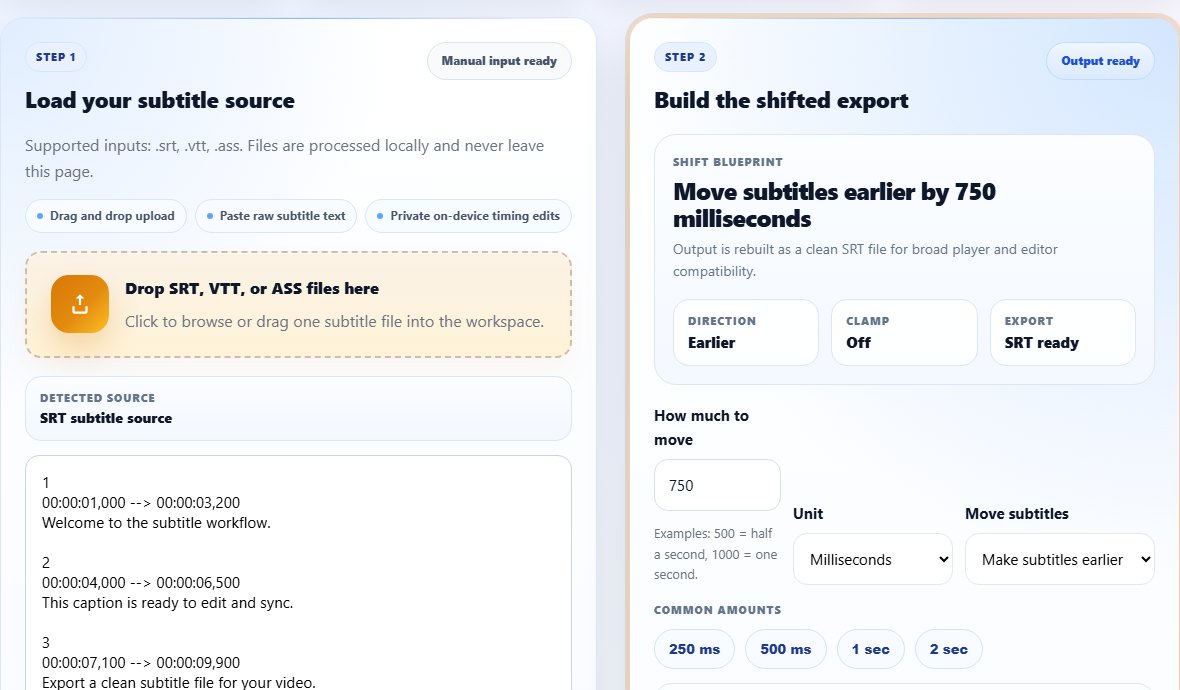
Fix: shift all cues 2 seconds earlier
After: cue starts at 00:01:10,000
Step-by-step: remove subtitle delay
Use clear dialogue moments for measuring delay. Music, overlapping speech, and quiet scenes make timing harder to judge.
Open the video and subtitle together in a player.
Find a clear spoken line near the beginning of the video.
Compare the spoken moment with the subtitle timestamp.
Calculate whether captions need to move earlier or later.
- Open the video and subtitle together in a player.
- Find a clear spoken line near the beginning of the video.
- Compare the spoken moment with the subtitle timestamp.
- Calculate whether captions need to move earlier or later.
- Apply the shift to every cue in the subtitle file.
- Test the same scene again and adjust only if the measurement was wrong.
- Check a second scene near the end to make sure the file does not drift.
- Export the corrected subtitle with a clear file name.
Practical examples
Real subtitle work usually fails at boundaries: the first spoken line, a scene change, a translated phrase that becomes longer, or a platform upload that expects a different format. Use the examples below as a quick quality check before you export.
If every line appears two seconds after speech, shift the whole file earlier by two seconds.
If captions appear before the speaker talks, shift the file later by the measured amount.
If the offset changes between scenes, find the subtitle file for the exact video version or repair timing in segments.
Every caption appears late, and viewers hear the line before they can read it.
Cue starts and dialogue starts match across the video, with durations preserved.
Common mistakes to avoid
Most subtitle problems become harder when the source file is edited without a plan. Keep an original copy, make one focused change at a time, and test the output in the environment where viewers will actually use it.
- Guessing the offset instead of measuring it from a clear line.
- Using a player delay shortcut and forgetting to fix the actual file.
- Applying a whole-file shift to a drifting subtitle.
- Testing only one scene in the middle of the video.
- Changing start times but not end times.
- Exporting the corrected file over the only original copy.
Conclusion
Removing subtitle delay is straightforward when the offset is constant. Measure the delay, shift all cues in the right direction, and verify the result in more than one scene.
If the subtitle still falls out of sync after a shift, treat it as a drift or wrong-release problem. That diagnosis prevents wasted time and protects the file from unnecessary edits.
Related tools
Use these TranslateSubtitles.net tools when you are ready to apply the workflow from this guide.
Related guides
FAQ
Should I shift subtitles earlier or later?
If captions appear after speech, move them earlier. If captions appear before speech, move them later.
Can I remove delay permanently?
Yes. Editing the subtitle file creates a permanent correction, unlike a temporary player shortcut.
What if only part of the subtitle is delayed?
A single whole-file shift may not solve it. You may need segment-level timing repair or a better matching subtitle file.
Does removing delay change subtitle text?
No. A normal delay fix only changes timestamps, not the caption text.