When subtitles are too fast or too slow, the issue is usually more complex than a simple delay. A simple delay means every cue is off by the same amount. A speed problem means the mismatch changes as the video plays. Subtitles might be correct in the first minute, slightly early after ten minutes, and completely wrong by the final scene.
This often happens when a subtitle file was made for a different frame rate or a different cut of the video. For example, a subtitle built for a 25 fps TV release may drift when used with a 23.976 fps film release. You do not need to know every technical detail to diagnose the problem, but you do need to test timing at multiple points before applying a fix.
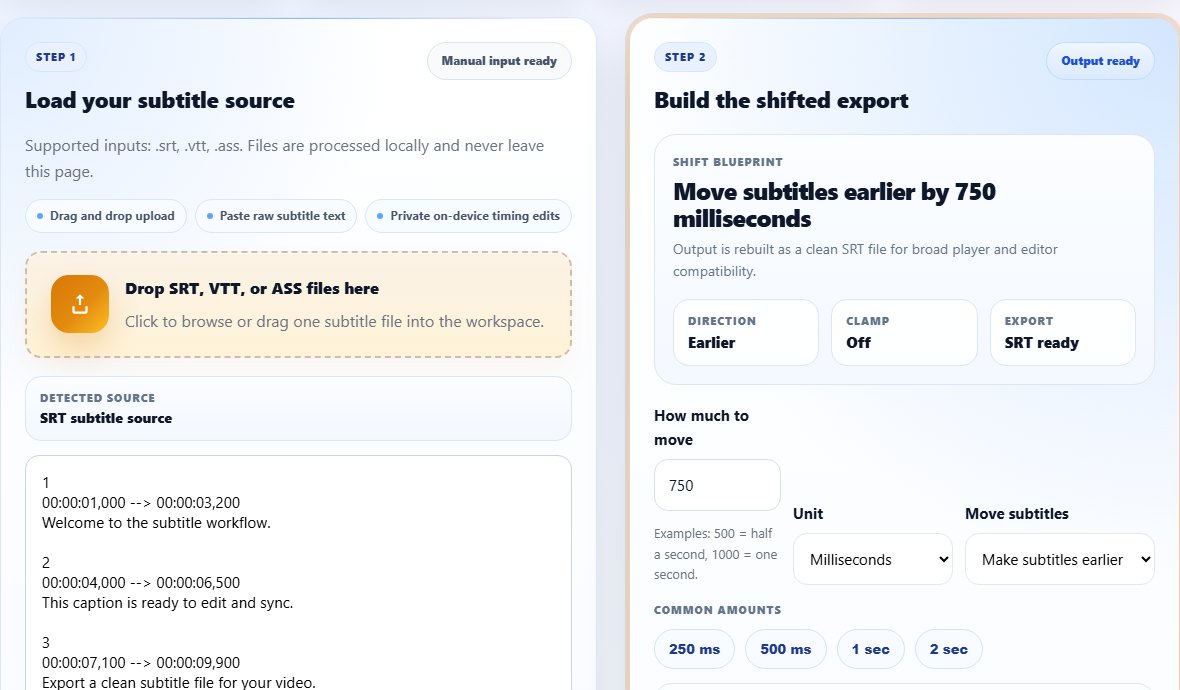
Tell the difference between offset and speed problems
Watch the same subtitle file at the start, middle, and end. If it is always two seconds late, use a basic shift. If it starts correct and becomes late or early over time, the subtitle speed does not match the video. Shifting the whole file may improve one part while making another part worse.
A practical test is to sync the first dialogue line with the Subtitle Shifter, then jump near the end. If the ending is still wrong, you are dealing with drift, missing scenes, frame rate differences, or an incorrectly edited subtitle file.
Step-by-step: repair subtitles that run too fast or too slow
Online shifting is best for consistent timing problems. For true speed conversion, you may need an editor that can stretch timing across a range. Still, many apparent speed problems turn out to be a missing intro, a recap, or a few extra cues. Checking the structure first prevents unnecessary work.
- Make a copy of the subtitle file before changing anything.
- Test the beginning, middle, and end of the video and write down whether captions are early or late at each point.
- Use the Subtitle Shifter to correct the first obvious offset, then test again.
- If the mismatch grows, look for another subtitle file made for your exact video release.
- If only one section goes wrong, open the file in the Subtitle Editor and correct that section separately.
- If the file has extra captions for scenes not in your video, remove or split the affected section before shifting.
- Export a clean SRT and test it from start to finish.
Tips for diagnosing subtitle speed
Pick scenes with clear dialogue and avoid judging from music, narration over montage, or overlapping speech. If you can identify a cue that should land on a specific word near the start and another near the end, you can see whether the subtitle file is stretching away from the video.
If a file is too fast, captions appear before the spoken line and the gap grows over time. If a file is too slow, captions appear after the spoken line and the gap grows. Write this down before editing because it is easy to reverse the direction when you are testing multiple exports.
Use two reference points
A speed problem needs at least two timing checks. One scene can reveal an offset, but two distant scenes reveal whether the offset changes.
Common mistakes with fast or slow subtitles
- Applying one large shift to a drifting file and only testing the first scene.
- Assuming frame rate is the only cause when the video may have extra or missing scenes.
- Downloading subtitles for a different episode cut or recap length.
- Editing a VTT or ASS file by hand and breaking cue timing.
- Forgetting to check readability after changing timing.
Related tools
Use these tools when you are ready to apply the workflow from this guide.
Related guides
FAQ
Why do subtitles get worse over time?
The subtitle file likely does not match the video length, frame rate, or edit. This creates drift instead of a simple fixed offset.
Can a subtitle shifter fix speed problems?
It can fix a consistent offset. If the mismatch grows across the video, you may need section edits or a subtitle file made for the exact video version.
What is the best format for editing timing?
SRT is usually easiest for basic timing edits because it is simple, readable, and supported by most tools.
Should I convert the file before fixing speed?
If your player struggles with the current format, convert to SRT first, then fix timing on the clean file.