Shifting subtitle timing means moving every cue in a file by a fixed offset. If subtitles are one second early, you shift them later by one second. If they are one second late, you shift them earlier by one second. This is one of the most common subtitle repairs because it preserves the text and only changes timestamps.
A timing shift is best for consistent sync problems. It is not the right fix for missing scenes, wrong episode cuts, or drift that grows over time. This guide explains how to choose the direction, pick an offset, use clamping, and export a clean SRT file.
When a timing shift is the right fix
Use a timing shift when the subtitles are early or late by the same amount across the whole video. This often happens when a video has an extra intro, a removed intro, a short logo, or a subtitle file made for a release with a slightly different start point.
Do not use a single shift when the gap changes over time. If the first scene is correct and the last scene is wrong, read Subtitles Too Fast or Too Slow before exporting multiple shifted versions.
Step-by-step: shift subtitle timing
The most important choice is direction. Viewers often say "the subtitles are delayed" when they mean the captions appear late. In that case, the fix is to move subtitles earlier, not later.
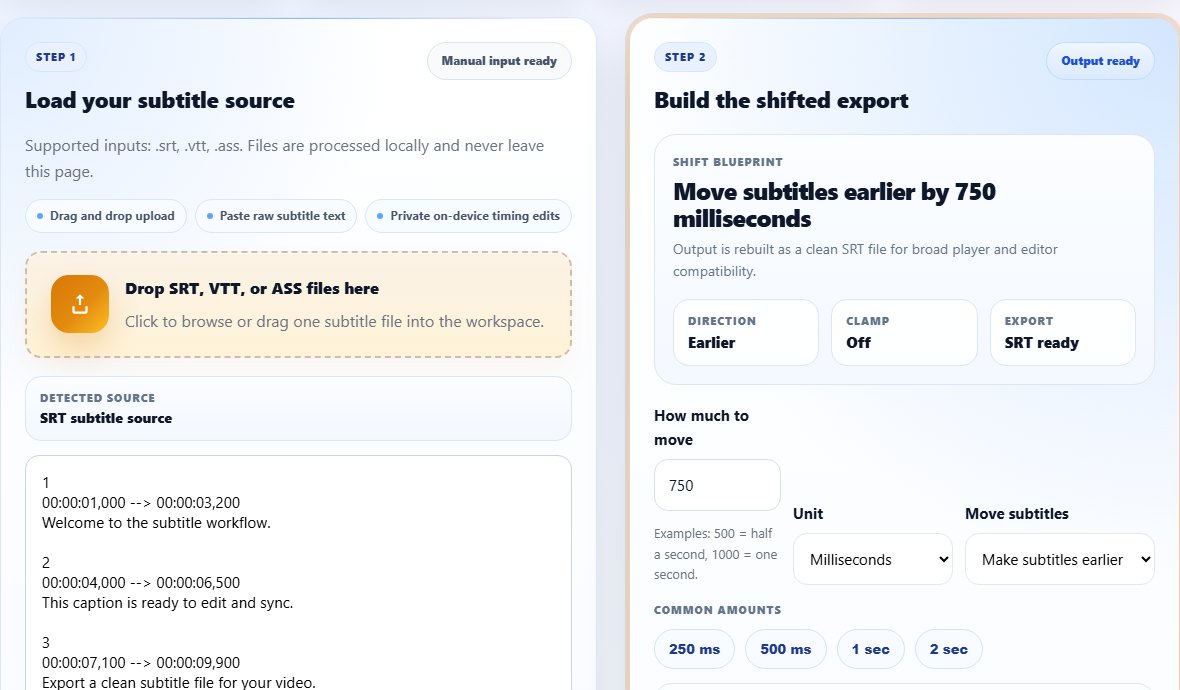
- Open the Subtitle Shifter.
- Upload your SRT, VTT, or ASS subtitle file.
- Choose the amount to move, using milliseconds for fine adjustments or seconds for larger offsets.
- Choose Make subtitles later if captions appear before speech.
- Choose Make subtitles earlier if captions appear after speech.
- Enable clamping when moving subtitles earlier could create negative timestamps.
- Run the shift, review the preview, and download the shifted SRT.
Tips for accurate subtitle shifting
Start with a rough correction, then fine tune. If subtitles are clearly two seconds late, shift earlier by two seconds and test. If the result feels close but not exact, adjust by 250 or 500 milliseconds.
Always test the exported file in the player where it will be used. Different players can render captions slightly differently, and web players may have their own caption loading behavior.
If you are working from feedback, ask for a timestamp where the problem is obvious. A note such as "subtitles are late at 08:14" is much more useful than a general complaint. It gives you a reference scene for testing the shifted export.
For long files, keep a small timing log. Write down the original problem, the shift amount, and the result. This is especially helpful when you compare several versions and need to return to the best export.
When a subtitle file has several language versions, shift each language from the same source timing if possible. Fixing English first and then applying the same offset to translated files keeps the multilingual set aligned.
If only one cue is wrong, do not shift the entire file. Open the subtitle in the editor and correct that single timestamp. Global shifts are powerful because they affect every cue, so they should be used only when the whole file shares the same offset.
Use small timing increments
When the file is close to correct, adjust by milliseconds instead of whole seconds. Small shifts often produce a more natural final result.
Common subtitle shifting mistakes
- Moving subtitles in the wrong direction.
- Ignoring negative timestamps at the beginning of the file.
- Using a timing shift to fix a file that actually drifts.
- Forgetting to check the end of the video after syncing the start.
- Manually changing timestamps and breaking the SRT format.
Related tools
Use these tools when you are ready to apply the workflow from this guide.
Related guides
FAQ
What does shifting subtitles mean?
It means adding or subtracting the same amount of time from every subtitle cue.
What is clamping negative timestamps?
Clamping pins any timestamp below zero to 00:00:00,000 so the exported file remains valid.
Can I shift VTT subtitles?
Yes. You can shift VTT input and export a clean SRT, then convert back to VTT if needed.
How do I know the right shift amount?
Estimate the gap in a clear dialogue scene, test that offset, then fine tune in smaller increments.