VLC is usually reliable with subtitle files, but missing subtitles are still common. The problem might be as simple as the subtitle track being disabled, or it might come from file naming, unsupported formatting, broken timestamps, or text encoding. The good news is that you can narrow the cause quickly if you check the basics in the right order.
This guide focuses on external subtitle files such as SRT, VTT, and ASS. It also helps when VLC shows the file name in the menu but no captions appear on screen. Work through the steps from player settings to file structure before you rebuild the subtitle file.
Quick checks inside VLC
First, open the video in VLC and go to the Subtitle menu. Make sure a subtitle track is selected. If the track says Disable, choose the file you want to display. If the file is not listed, use Add Subtitle File and load it manually.
Next, confirm that the subtitles are not hidden by style choices. In VLC preferences, subtitle text color, outline, and position can make captions hard to see against a bright image. Restore default subtitle settings if you are not sure what changed.
Step-by-step: make subtitles appear in VLC
VLC can load subtitles with different names, but matching names reduce mistakes, especially on TV boxes and mobile devices. If you downloaded several subtitle versions, remove old files from the folder while testing so VLC does not pick the wrong one.
- Put the video file and subtitle file in the same folder.
- Give both files the same base name, such as movie.mp4 and movie.srt.
- Open the video in VLC, then choose Subtitle > Add Subtitle File if VLC does not load it automatically.
- Open Subtitle > Sub Track and select the loaded subtitle track.
- If captions still do not show, open the subtitle file in a text editor and confirm it contains readable timestamp blocks.
- If the file is VTT or ASS and VLC behaves inconsistently, convert it to SRT with the Subtitle Format Converter.
- If text appears as strange symbols, follow the Arabic subtitle encoding guide or save the file as UTF-8.
Check whether the subtitle file is valid
A valid SRT file usually contains numbered cues, timestamps in the format 00:00:01,000 --> 00:00:04,000, and subtitle text below each timestamp. If the timestamps are missing, malformed, or written with periods where the player expects commas, VLC may fail to show some cues.
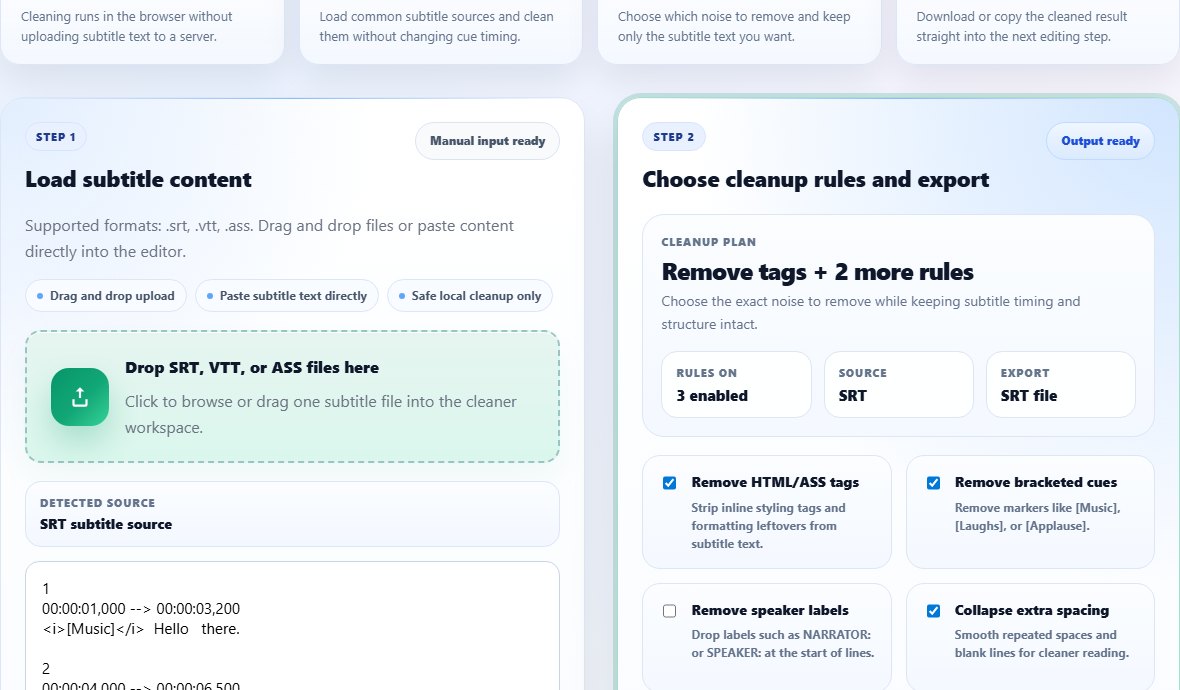
If your file came from a website, a ZIP archive, or an export tool, clean it before testing again. The Subtitle Cleaner can help remove duplicate empty lines and messy formatting. If you need to edit individual cues, use the Subtitle Editor.
Also check the first timestamp in the file. If the first cue starts at 00:45:00,000 but your video is only ten minutes long, VLC is showing nothing because every cue sits outside the playable timeline. That usually means the subtitle belongs to a different video or needs to be shifted back to the start of the file.
When VLC is not the problem
If the same subtitle file fails in multiple players, repair or replace the subtitle file before changing more VLC settings.
Common mistakes that hide subtitles in VLC
- Loading the video but never enabling the subtitle track.
- Using a subtitle file for a different episode, release, or language.
- Saving the file with the wrong extension, such as .txt instead of .srt.
- Keeping multiple subtitle files with similar names in the same folder.
- Using a text encoding that displays unreadable characters.
Related tools
Use these tools when you are ready to apply the workflow from this guide.
Related guides
FAQ
Why does VLC detect my subtitle but not show it?
The track may be disabled, the timestamps may be outside the visible part of the video, or the file may contain formatting VLC cannot render correctly.
Should I use SRT or VTT in VLC?
SRT is the safest choice for VLC and most offline players. VTT is better for web video and HTML5 tracks.
Can VLC show subtitles inside an MP4?
Yes, if the MP4 includes a compatible subtitle track. For external files, keep the subtitle beside the video and load it from the Subtitle menu.
Why do Arabic subtitles show as broken characters in VLC?
The file is probably saved with the wrong encoding. Save it as UTF-8 and check the Arabic encoding guide.