SRT is popular because it is simple. Each cue has a number, a timestamp range, and one or more lines of text. That simplicity is also why manual editing can be risky. A missing arrow, wrong comma, duplicate cue number, or extra blank line can make a media player skip captions.
This guide shows how to edit SRT subtitles safely. It covers text corrections, timing adjustments, line breaks, common mistakes, and when to use a browser-based subtitle editor instead of a plain text editor.
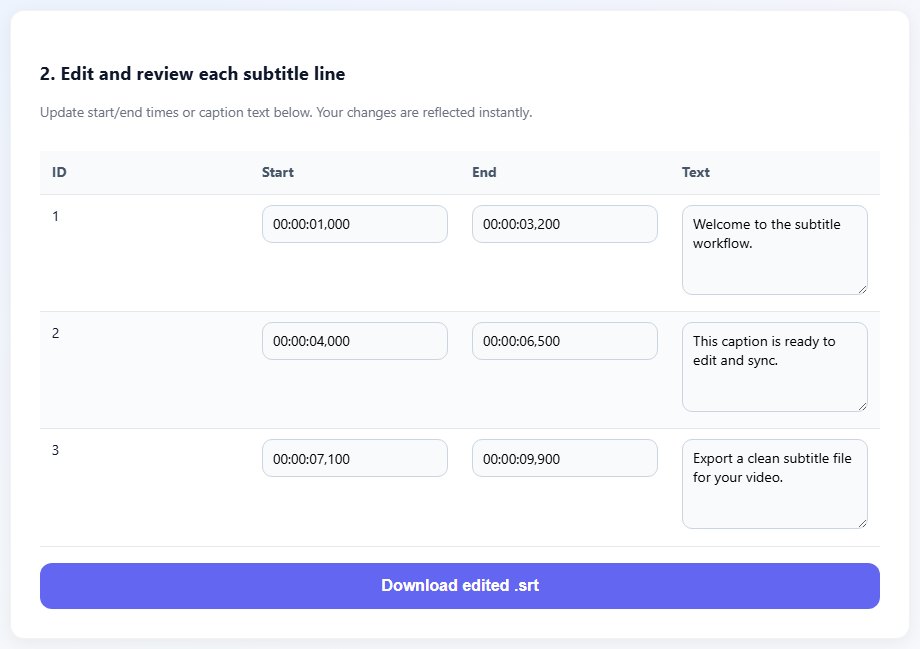
Understand the SRT structure
A standard SRT cue looks like a number, then a timestamp line, then caption text. The timestamp format is hours, minutes, seconds, and milliseconds: 00:01:05,500 --> 00:01:08,000. Cues are separated by a blank line. If you break this structure, the file may still open in a text editor but fail in a player.
You can edit text directly, but be careful with timestamps. Keep the comma before milliseconds, keep the arrow as -->, and avoid overlapping cues unless you know the player supports it.
Step-by-step: edit an SRT file
A dedicated subtitle editor reduces format errors because it keeps cues organized. A plain text editor is fine for small spelling changes, but larger edits are easier when you can see cue boundaries and timing fields clearly.
- Open the Subtitle Editor.
- Upload the SRT file or paste the subtitle content.
- Scan the cues for spelling, punctuation, speaker labels, and line breaks.
- Edit text while keeping each caption short enough to read comfortably.
- Adjust individual timestamps only when a specific cue is early or late.
- Use the Subtitle Shifter instead if every cue needs the same timing change.
- Export the edited SRT and test it in the video player.
Tips for readable subtitles
Keep captions concise. A subtitle that stays on screen for two seconds should not contain a long paragraph. If a line feels crowded, split the text across two cues or shorten wording while keeping the meaning.
Avoid unnecessary punctuation noise. Subtitles should help viewers follow the video, not distract them. Clean speaker labels, remove repeated OCR mistakes, and keep formatting consistent across the file.
Read a few edited captions out loud while the video plays. If you cannot comfortably read the subtitle before it disappears, the viewer probably cannot either. Shortening text is often better than extending a cue into the next line of dialogue.
For tutorials, interviews, and course videos, keep terminology consistent. If you change a product name, abbreviation, or technical phrase in one cue, search the rest of the file and apply the same correction everywhere.
Keep speaker labels consistent too. If one section uses "John:" and another uses "Speaker 1:", viewers may think a new person is talking. Decide on a label style before editing the whole file.
After major edits, scan for empty cues. A cue with timestamps but no text can create confusing pauses or blank caption boxes in some players. Delete empty cues or add the missing text before exporting.
Finally, keep the edited file name practical. A clear name with the language and version is easier to find than a generic final-final.srt export.
Proofread with the video open
Text that looks correct in a list can feel too long or poorly timed during playback, so always review important edits against the actual video.
Common SRT editing mistakes
- Changing timestamps to use periods in a player that expects SRT commas.
- Deleting blank lines between cues.
- Creating overlapping cues by extending one caption too far.
- Saving the file as .txt instead of .srt.
- Editing Arabic or other non-Latin subtitles without preserving UTF-8 encoding.
Related tools
Use these tools when you are ready to apply the workflow from this guide.
Related guides
FAQ
Can I edit SRT subtitles in Notepad?
Yes, for small text changes. For timing and larger edits, a subtitle editor is safer because it preserves cue structure.
What is the correct SRT timestamp format?
Use HH:MM:SS,mmm --> HH:MM:SS,mmm, for example 00:00:12,500 --> 00:00:15,000.
How long should a subtitle stay on screen?
It depends on reading speed, but avoid very short cues for long text. Test readability in the video.
Should I clean subtitles before editing?
If the file has duplicated lines or messy spacing, cleaning first makes editing easier.