An SRT file is a plain-text subtitle file, but the way you open it depends on what you want to do. A video player opens it for playback. A text editor opens it for inspection. A subtitle editor opens it for safer timing and text changes.
Because SRT is simple, it is also easy to damage accidentally. Removing blank lines, changing timestamp punctuation, or saving with the wrong encoding can make a working file fail in players.
This guide explains the safest ways to open SRT files for watching, editing, translating, converting, and troubleshooting.
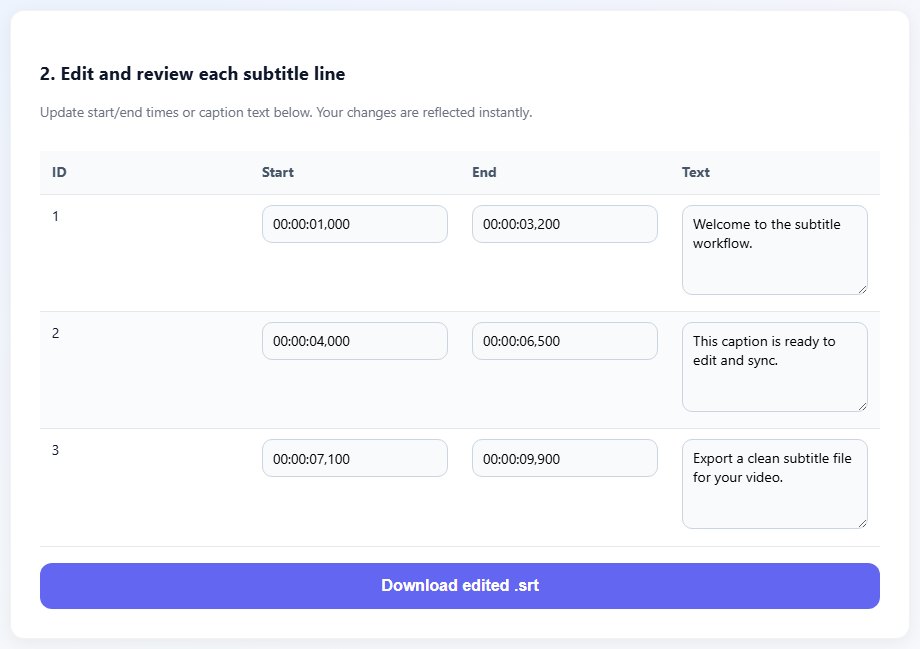
What you should see inside an SRT file
A normal SRT file contains cue numbers, timestamp ranges, caption text, and blank lines between cues. If you open it in a text editor, it should look structured rather than like random code.
If the text appears as unreadable symbols, the file may have an encoding problem. UTF-8 is the safest encoding for modern subtitle workflows, especially when the file contains Arabic, accented characters, or multiple languages.
If you only want to watch a video with subtitles, open the video in a player and load the SRT as a subtitle track. Do not edit the file unless there is a real problem.
If you need to fix timing or text, use a subtitle editor. It reduces the chance of breaking blank lines, cue order, or timestamp syntax while making changes.
If you are not sure what a tool will do to the SRT, duplicate the file first and test on the copy.
1
00:00:01,000 --> 00:00:03,500
This is what an SRT cue looks like.

2
00:00:04,000 --> 00:00:06,000
The blank line matters.
Step-by-step: open an SRT file safely
Choose the opening method based on your goal. Watching, editing, converting, and troubleshooting are different workflows.
For playback, open the video in a player and load the SRT as a subtitle file.
For inspection, open the SRT in a plain text editor.
For timing edits, open it in a subtitle editor or shifter.
For format changes, use a subtitle format converter.
- For playback, open the video in a player and load the SRT as a subtitle file.
- For inspection, open the SRT in a plain text editor.
- For timing edits, open it in a subtitle editor or shifter.
- For format changes, use a subtitle format converter.
- Check that the file remains UTF-8 after saving.
- Avoid rich text editors that may add formatting.
- Preview the file after any edit.
- Keep an original backup before major changes.
Practical examples
Real subtitle work usually fails at boundaries: the first spoken line, a scene change, a translated phrase that becomes longer, or a platform upload that expects a different format. Use the examples below as a quick quality check before you export.
Load the SRT in VLC or another player without editing the file.
Use a subtitle editor so the timestamp structure remains intact.
Open the SRT in a converter and export VTT for HTML5 video.
The SRT is opened in a rich editor, reformatted, and saved with broken cue spacing.
The file is opened with the right tool for the task and tested after any change.
Common mistakes to avoid
Most subtitle problems become harder when the source file is edited without a plan. Keep an original copy, make one focused change at a time, and test the output in the environment where viewers will actually use it.
- Opening SRT files in software that adds rich text formatting.
- Deleting blank lines between cues while editing.
- Changing timestamp commas to periods without converting to VTT.
- Saving non-Latin subtitles in the wrong encoding.
- Assuming an SRT is a video file rather than a subtitle file.
- Editing the only copy without a backup.
Conclusion
Opening SRT files is easy once you match the tool to the task. Use a player for viewing, a plain editor for inspection, and subtitle tools for editing, shifting, converting, or translating.
The main rule is to preserve structure. Cue numbers, timestamps, text, blank lines, and UTF-8 encoding are what keep an SRT usable.
Related tools
Use these TranslateSubtitles.net tools when you are ready to apply the workflow from this guide.
Related guides
FAQ
Can I open SRT files in Notepad?
Yes, SRT is plain text. Use care when saving so encoding and formatting remain valid.
Why does my SRT look like symbols?
The file may be saved with the wrong encoding. UTF-8 is usually the safest fix.
Can an SRT play by itself?
No. An SRT is a subtitle file that needs a video player or editor to use it with media.
Can I convert SRT to VTT?
Yes. Use a converter when you need captions for HTML5 web video.