SRT is one of the simplest subtitle formats, which is exactly why it remains so useful. A valid SRT file is plain text, but it has a strict rhythm: cue number, timestamp range, caption text, blank line, then the next cue.
Creating SRT subtitles is not only transcription. You are also deciding where captions start, where they end, how much text appears on screen, and whether the viewer has enough time to read without falling behind the video.
This guide walks through a dependable SRT creation process for creators, educators, editors, translators, and anyone turning raw dialogue into captions that can be uploaded, translated, or converted.
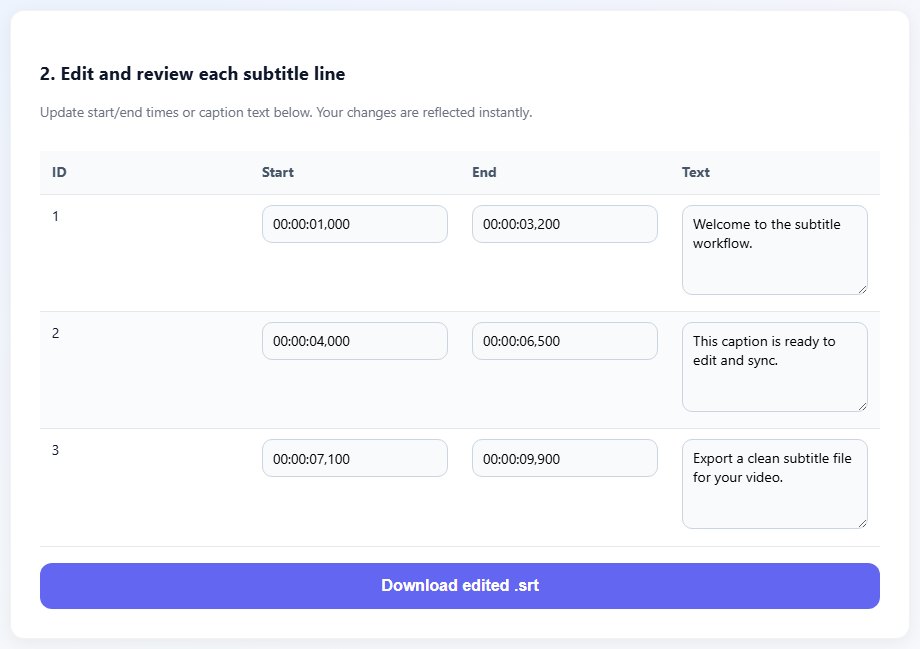
The basic structure of an SRT file
Every SRT cue starts with a number. The number helps editors and players keep cue order clear, although many tools can rebuild numbering if it becomes messy. After the number comes a timestamp range in the format hours, minutes, seconds, milliseconds.
SRT timestamps use commas before milliseconds: 00:01:04,500 --> 00:01:07,200. A common beginner mistake is using periods from WebVTT syntax or omitting milliseconds completely. Some players forgive that, but clean delivery should use standard SRT syntax.
Caption text sits below the timestamp. It can be one line or two lines, but it should remain readable. If a caption contains too much text, viewers spend the scene reading instead of watching. Good SRT creation balances timing accuracy with line length.
A blank line separates each cue. Without blank lines, the file may look readable to a person but fail in players or upload systems. Treat the blank line as part of the format, not decoration.
Do a rough timing pass first. Once every sentence appears near the right moment, tighten line breaks, spelling, and reading speed.
1
00:00:01,000 --> 00:00:03,800
Welcome to the first lesson.

2
00:00:04,000 --> 00:00:07,300
We will build the subtitle file step by step.
Step-by-step: create an SRT file
Use this process whether you are starting from a full transcript, translated dialogue, or notes from a recorded lesson.
Transcribe or collect the spoken dialogue in clean text.
Split the transcript into short caption-sized units.
Add start and end times for each cue while watching the video.
Number the cues in order from the beginning of the file.
- Transcribe or collect the spoken dialogue in clean text.
- Split the transcript into short caption-sized units.
- Add start and end times for each cue while watching the video.
- Number the cues in order from the beginning of the file.
- Keep most captions to one or two readable lines.
- Preview playback and adjust cues that appear too early, too late, or too briefly.
- Run a final pass for spelling, punctuation, speaker labels, and line breaks.
- Export as .srt with UTF-8 encoding.
Practical examples
Real subtitle work usually fails at boundaries: the first spoken line, a scene change, a translated phrase that becomes longer, or a platform upload that expects a different format. Use the examples below as a quick quality check before you export.
Break long answers into readable cues rather than placing an entire paragraph on screen.
Use clear punctuation and consistent terminology so learners can follow technical explanations.
Translate after timing when possible, then adjust lines so the target language still fits the cue duration.
The transcript is a block of text with no timestamps, no cue order, and no playback timing.
The SRT has numbered cues, standard timestamps, readable line breaks, and a clean UTF-8 export.
Common mistakes to avoid
Most subtitle problems become harder when the source file is edited without a plan. Keep an original copy, make one focused change at a time, and test the output in the environment where viewers will actually use it.
- Using WebVTT timestamp syntax in an SRT file.
- Forgetting blank lines between cues.
- Putting too much text in one cue.
- Ending captions before the viewer can read them.
- Mixing transcript notes with visible subtitle text.
- Saving the file with the wrong extension or encoding.
Conclusion
Creating SRT subtitles is a craft of small decisions. The format is simple, but the viewing experience depends on timing, line length, reading speed, and consistent structure.
Once you have a clean SRT master, you can translate it, convert it to VTT, split it for chapters, merge it with other parts, or use it as the source for platform uploads.
Related tools
Use these TranslateSubtitles.net tools when you are ready to apply the workflow from this guide.
Related guides
FAQ
Can I create SRT subtitles in a text editor?
Yes. SRT is plain text, but a subtitle editor makes timing, cue order, and preview easier to manage.
What encoding should SRT use?
UTF-8 is the safest choice, especially for multilingual subtitles and non-Latin scripts.
How long should each subtitle cue stay on screen?
It depends on text length and speech speed, but each cue should remain long enough to read comfortably.
Can I convert a transcript to SRT automatically?
A transcript can be a starting point, but you still need timestamps and a review pass for readable captions.