Adding subtitles to MP4 can mean two different things. Soft subtitles are separate caption tracks that viewers can turn on or off. Burned-in subtitles are permanently rendered into the video image. Both approaches are useful, but they solve different problems.
TranslateSubtitles.net focuses on preparing subtitle files: cleaning, editing, syncing, merging, and converting. Once the subtitle file is correct, you can attach it to a web player, upload it beside an MP4, or use video software to embed or burn it into the video.
Choose soft subtitles or burned-in subtitles
Use soft subtitles when you want accessibility, multiple languages, searchable text, or viewer control. This is common for websites, online courses, and platforms that support caption tracks. Use burned-in subtitles when the platform does not support external captions or when you need the text visible everywhere, including social media previews.
Soft subtitles usually start as SRT or VTT. For web video, VTT is often required. For offline MP4 playback, SRT is widely supported as an external file when it shares the same name as the video.
Step-by-step: prepare subtitles for an MP4
If you need burned-in subtitles, use a video editor or encoding tool after the subtitle file is finalized. Do not burn in captions before proofreading, because every typo requires exporting the video again.
- Start with an SRT file or create one from your transcript.
- Open the file in the Subtitle Editor to correct text, cue order, and line breaks.
- Use the Subtitle Shifter if captions are early or late.
- If the MP4 is made from several video parts, use Merge Subtitles to create one caption file.
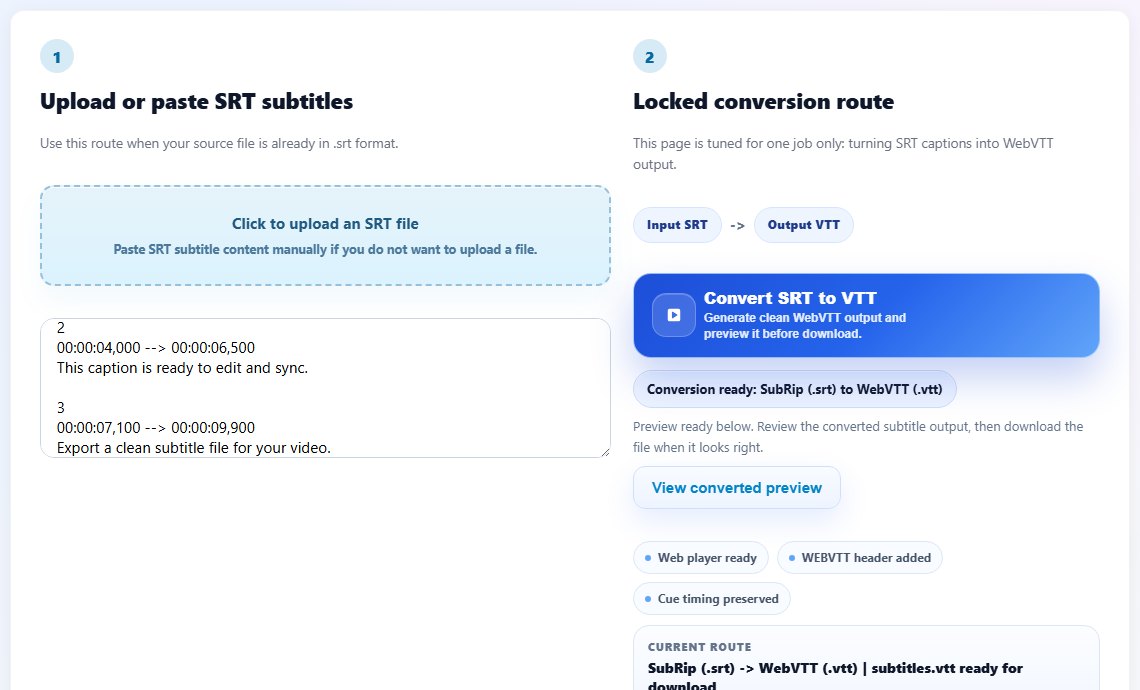
- For web delivery, convert SRT to VTT with the SRT to VTT Converter.
- Upload the subtitle file to your platform or attach it in your video player settings.
- Test playback with subtitles enabled before publishing.
Tips before publishing MP4 subtitles
Keep a separate subtitle file even if you burn captions into the MP4. The separate file can be reused for translation, accessibility, search indexing, and future edits.
For a website, test captions on desktop and mobile. Controls, font size, and safe areas can differ by device. A caption that looks fine on a large monitor may cover important visual content on a phone.
If you plan to publish on several platforms, keep exports organized by destination. A YouTube caption file, a website VTT file, and an offline SRT file may all come from the same source, but each platform can have different naming and upload requirements.
When subtitles are burned into an MP4, contrast matters. White text without an outline can disappear over bright scenes. Review several visual backgrounds before considering the export finished.
For soft subtitles, include a clear language label during upload. A file named captions-final.srt may work technically, but a viewer-facing label such as English, Arabic, or French makes the track easier to choose.
Keep a source subtitle file
Even after publishing the MP4, keep the editable SRT or VTT source so future fixes do not require rebuilding captions from scratch.
Common mistakes when adding subtitles to MP4
- Burning subtitles into the video before proofreading the text.
- Using SRT for a web player that expects VTT.
- Uploading a subtitle file with a different base name than the MP4 in offline playback workflows.
- Forgetting to test subtitle sync after exporting or uploading the MP4.
- Not keeping a clean source subtitle file for future edits.
Related tools
Use these tools when you are ready to apply the workflow from this guide.
Related guides
FAQ
Can MP4 files contain subtitles?
Yes. MP4 can include subtitle tracks, but support varies by player and platform. External SRT or VTT files are often easier to manage.
Should I burn subtitles into my MP4?
Burn them in only when viewers must always see captions or the platform does not support subtitle tracks.
Do I need SRT or VTT for MP4?
For offline playback, SRT is common. For HTML5 web video, VTT is usually the better choice.
Can I add multiple languages to one MP4?
Many platforms support multiple subtitle tracks, but the workflow depends on the player. Keep one subtitle file per language.